
How to use the site
Put the site on your home screen
The site then opens like an app, with its own icon. You do not install anything from a store.
iPhone or iPad (Safari or Chrome)
- Open your briefing. A banner at the top links to this page.
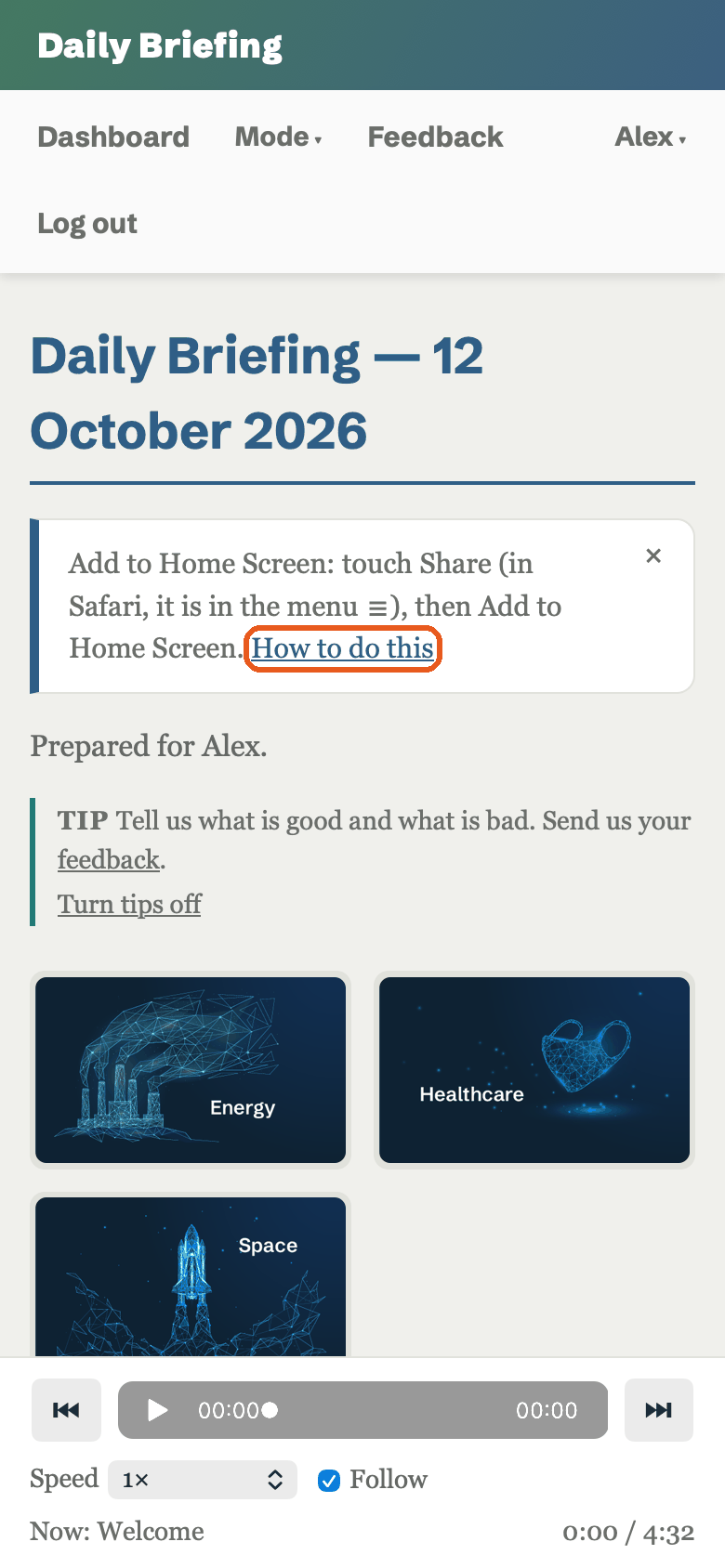
- Touch the menu button ☰ at the left of the address bar.
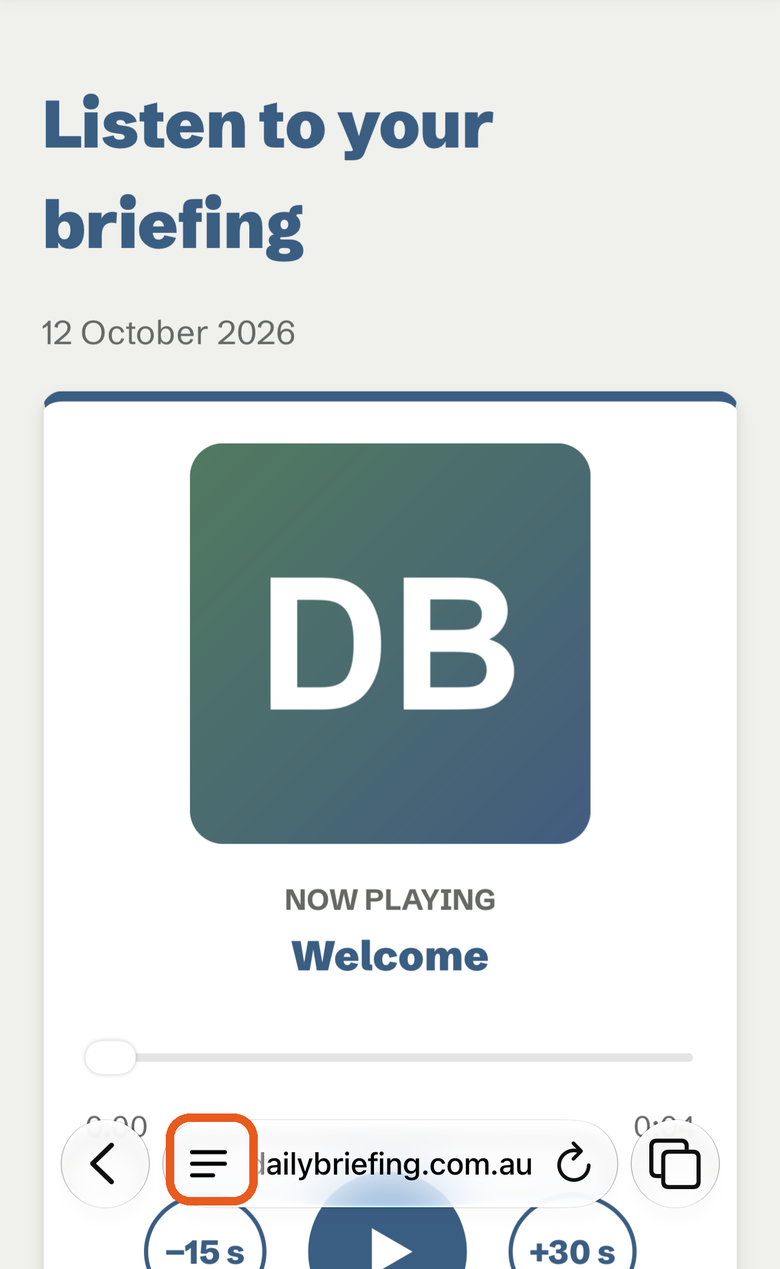
- Touch Share.
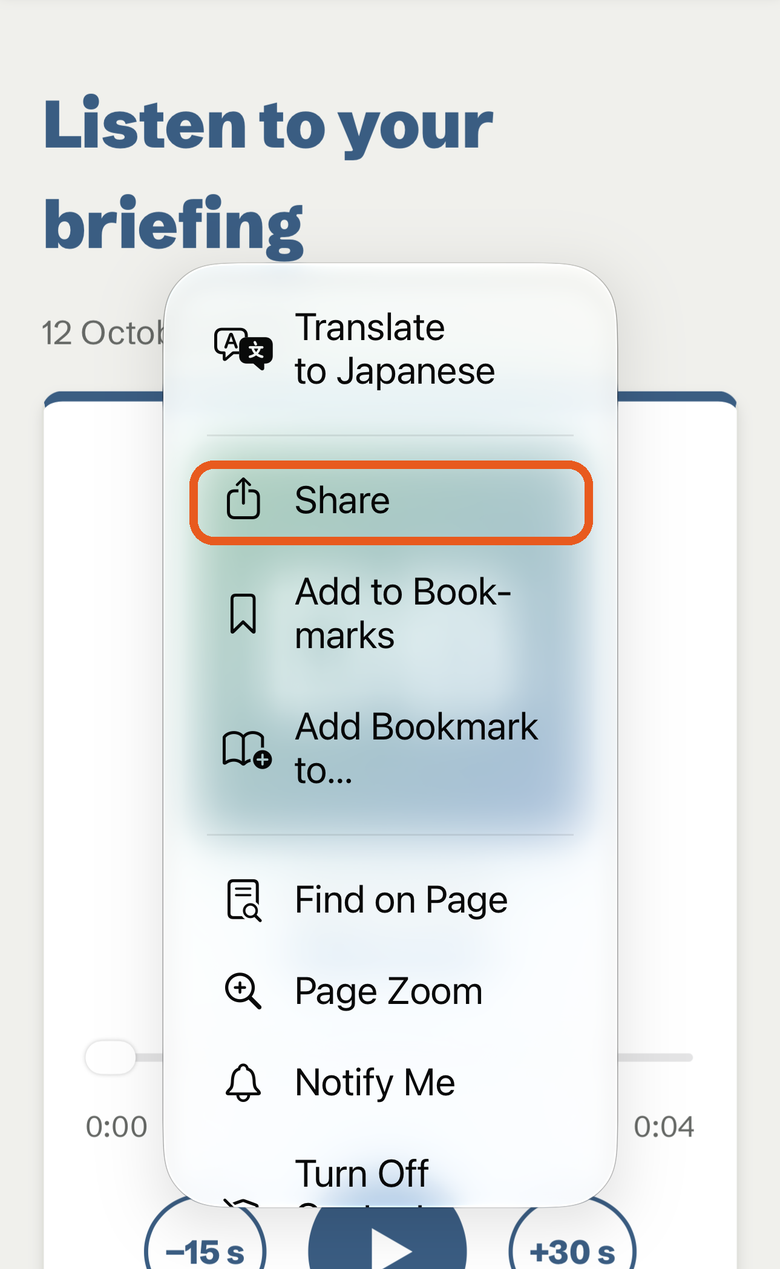
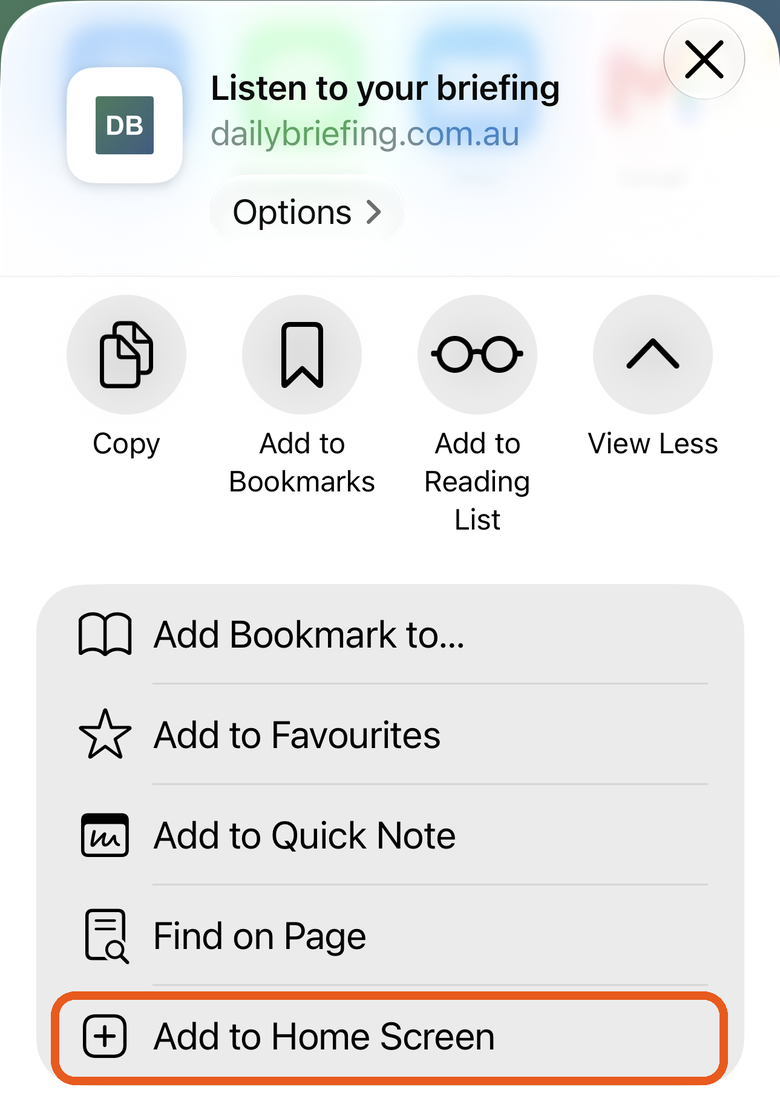
- Touch Add to Home Screen. If you do not see it, touch View More.
- Leave Open as Web App on. Then touch Add.
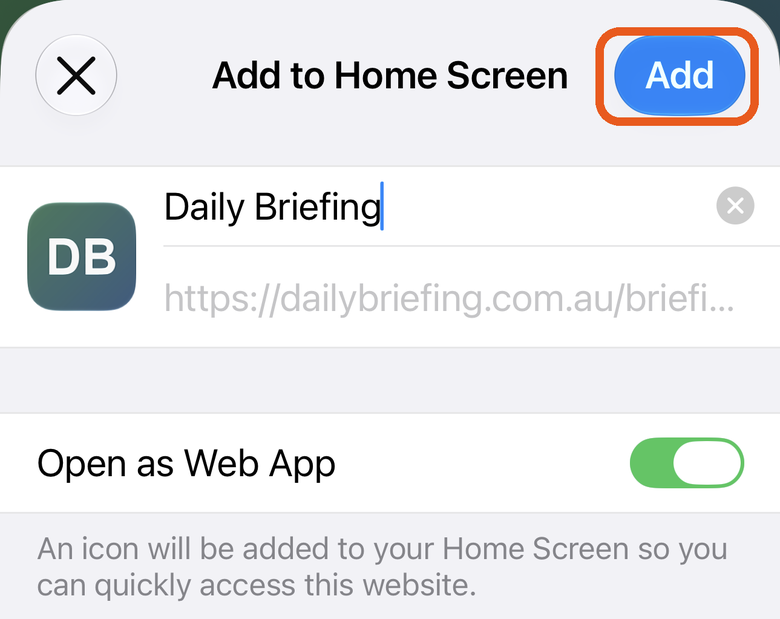
In Chrome on iPhone, the Share button is at the top right. Touch it, then touch Add to Home Screen.
You may need to log in one more time inside the app. After that, you stay logged in for 90 days from your last visit.
Android (Chrome)
- Open your briefing. A banner at the top shows an Install button. Touch it, then follow the steps on the screen.
- The banner is not there? Touch the menu at the top right of Chrome.
- Touch Add to Home screen or Install app.
Listen to your briefing
You can listen to your briefing as well as read it. The audio bar is at the bottom of your briefing. It shows only when you are logged in and at least one of your categories has audio.
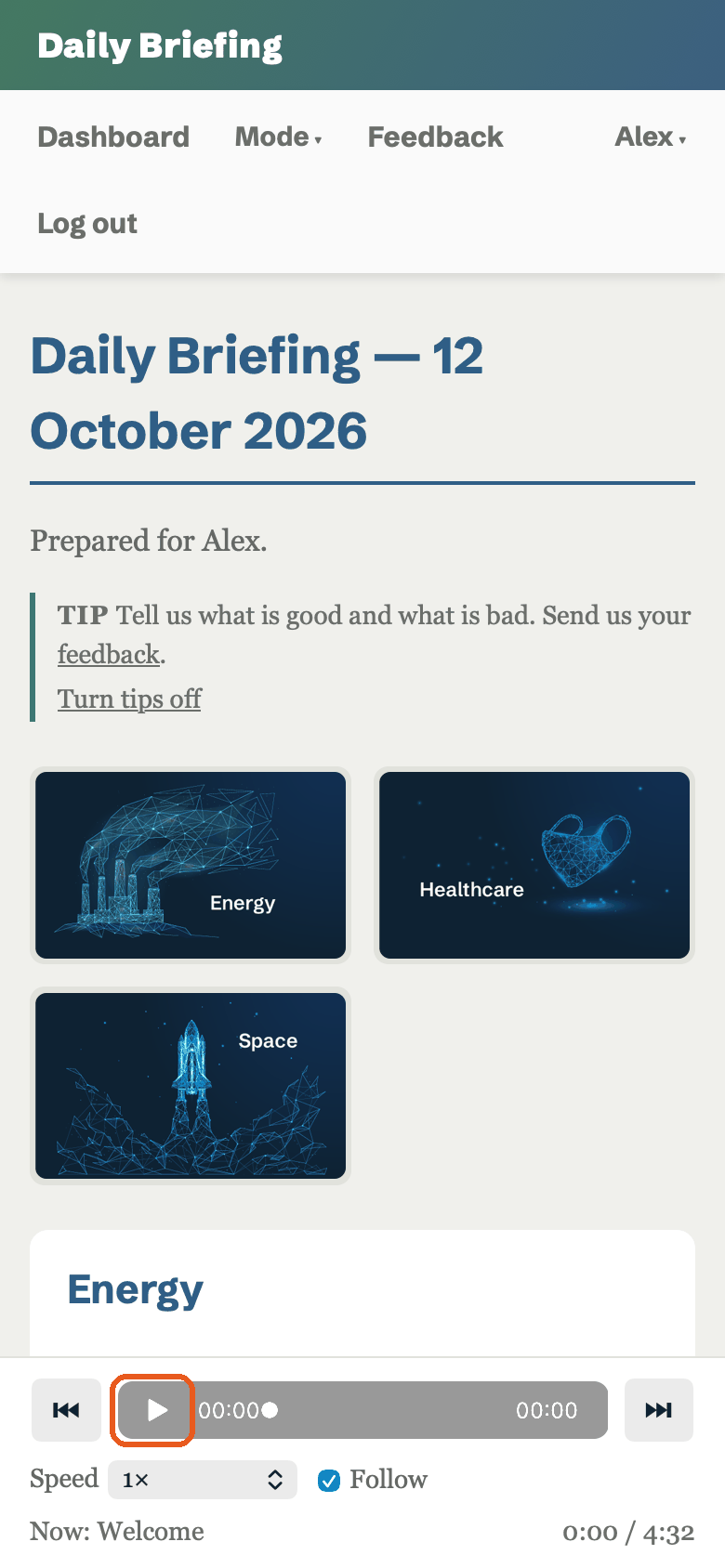
- Play and pause: use the play button on the bar.
- Previous and next: the two skip buttons go to the previous or the next category. The previous button goes back to the start of the category if it has played for more than 3 seconds.
- Speed: the Speed menu changes the speed for this listen only. To set your usual speed, go to Your preferences and change Audio speed.
- Follow: when this box is ticked, the page scrolls to the category that is playing.
The order is: Welcome, your name, the Top story, your categories, then Closing.
Mode: you can choose Read and listen, Read only or Listen only. Read only hides all audio. To change the mode, see Change the mode.
Change the mode
The mode says how you get your briefing. There are three modes: Read and listen, Read only and Listen only. The Mode menu is in the bar at the top of every page.
- Touch Mode. A list opens.
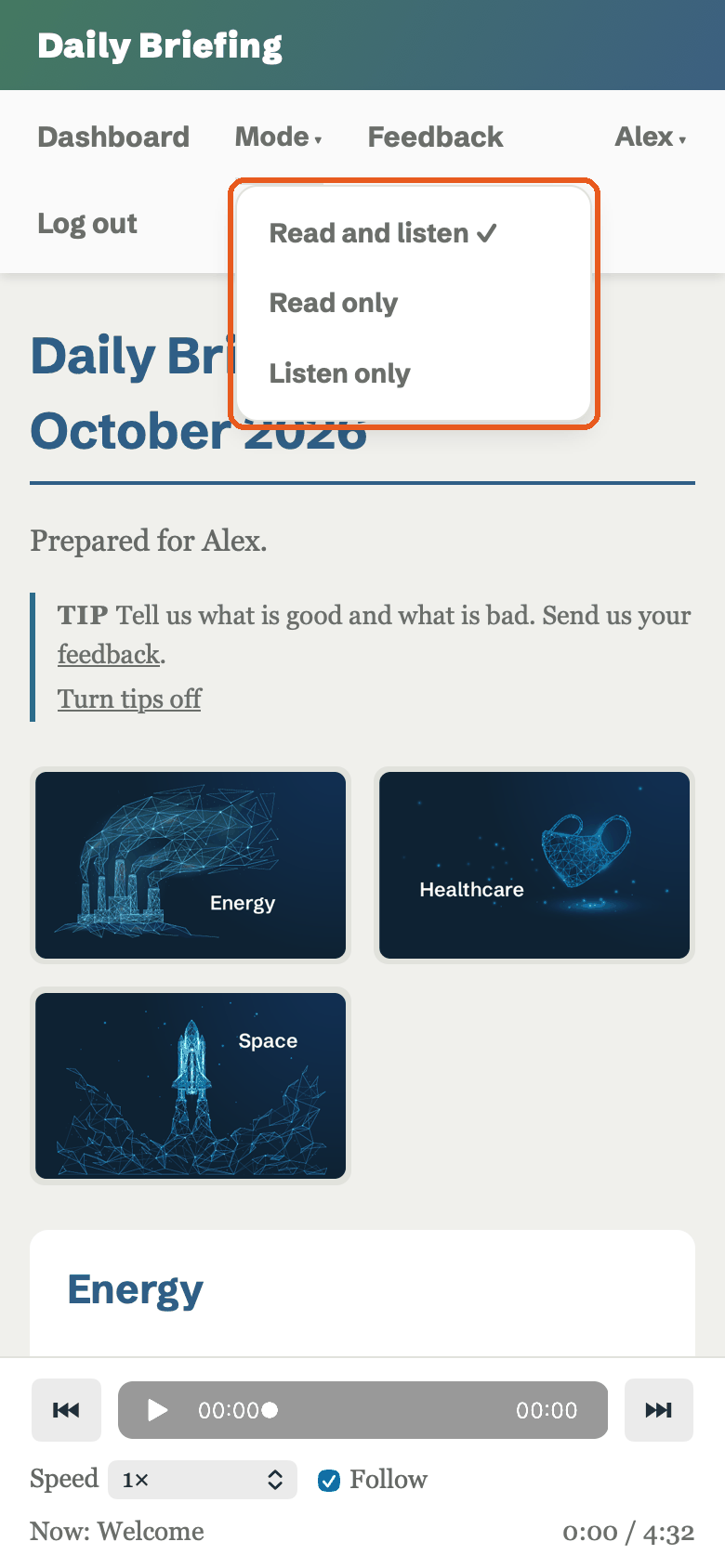
- Touch the mode that you want. A tick shows the mode that is on now.
- The page loads again in the new mode.
The same setting is also in Your preferences and in the setup steps.
Use the Listen only page
Listen only gives you a page made for listening. You do not read it. You press play and put the phone down.
Turn it on
- Touch Mode in the bar at the top of the page.
- Touch Listen only. The page loads again as the Listen only page.
To go back to the normal page, touch Mode, then touch Read and listen. Change the mode has a picture.
Choose a voice
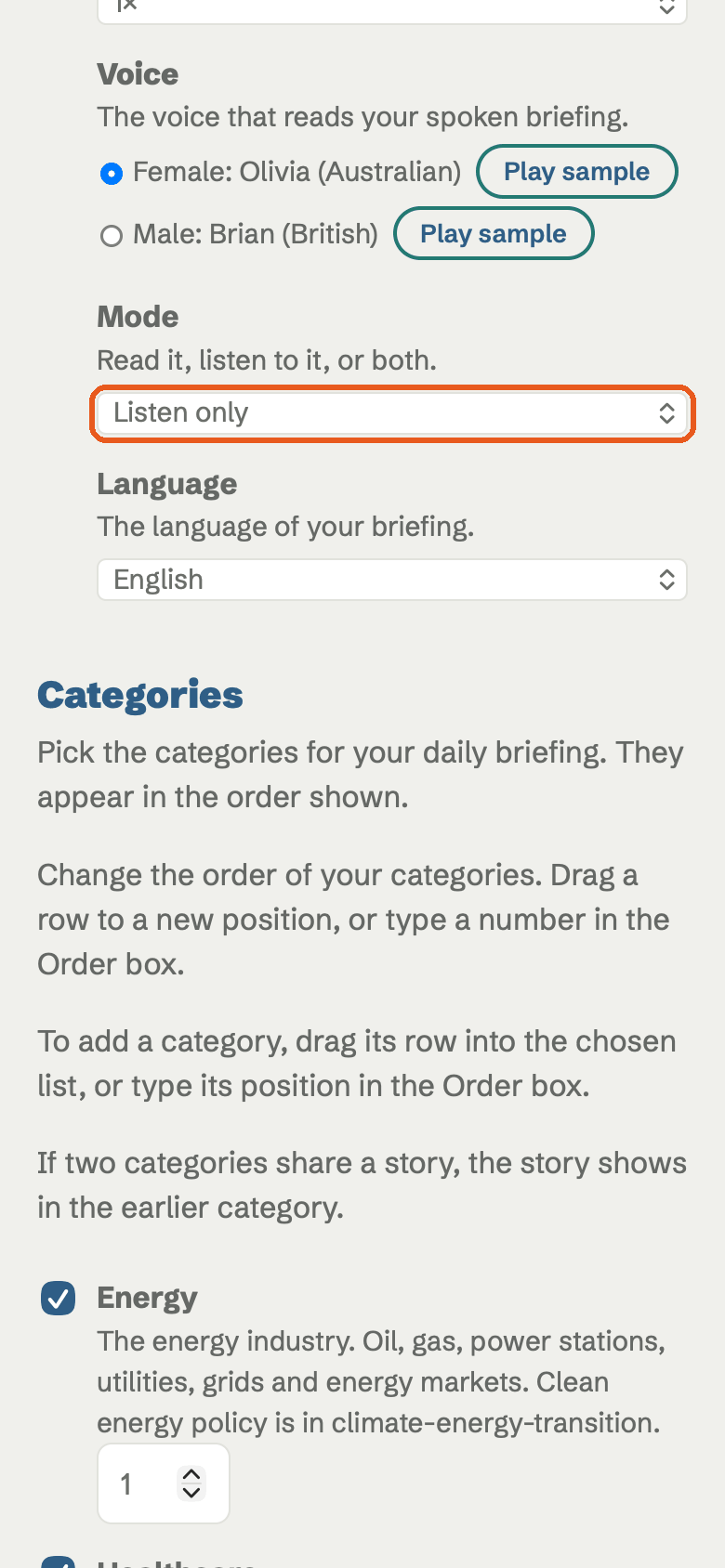
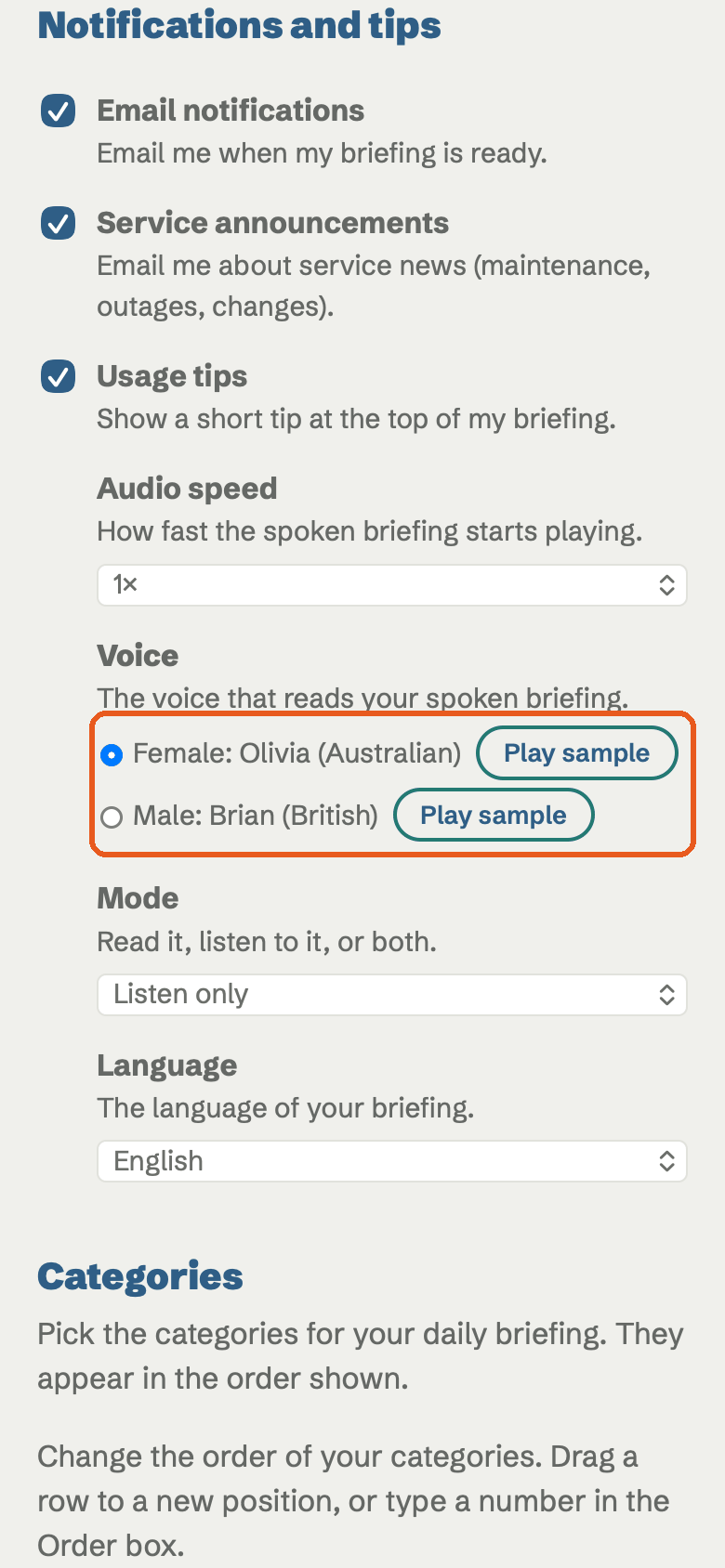
In Your preferences, find Voice. Choose Female or Male. Touch Play sample to hear each voice. Then touch Save.
Listen
- Open your briefing. The Listen only page opens.
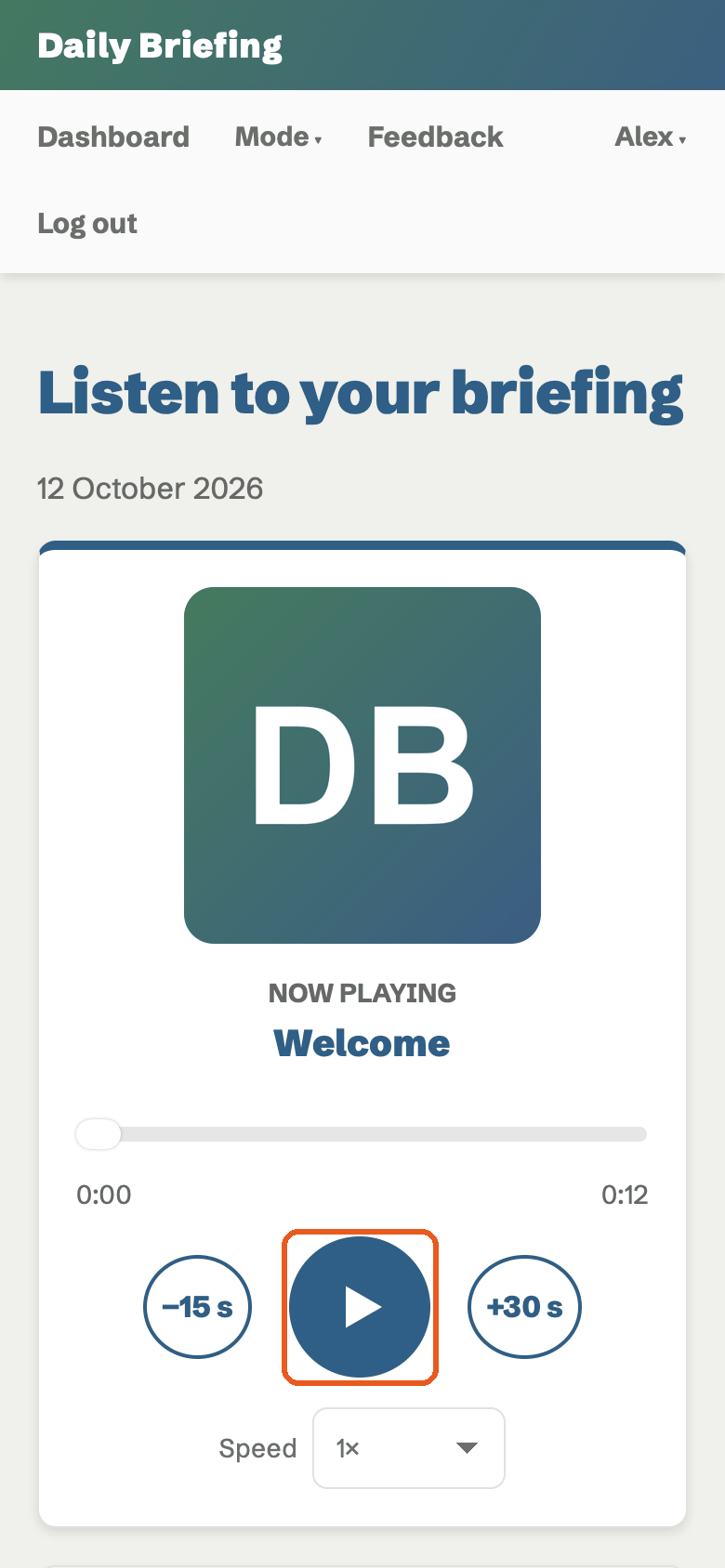
- Touch the big play button. The clips play one after the other.
- Touch the back button to go back 15 seconds. Touch the forward button to go forward 30 seconds.
- Touch a clip in the list to play it.
- Touch the Read link by a clip to read the same story.
- A tick shows next to each clip that you finished.
- Close the page and come back later. The page remembers where you stopped.
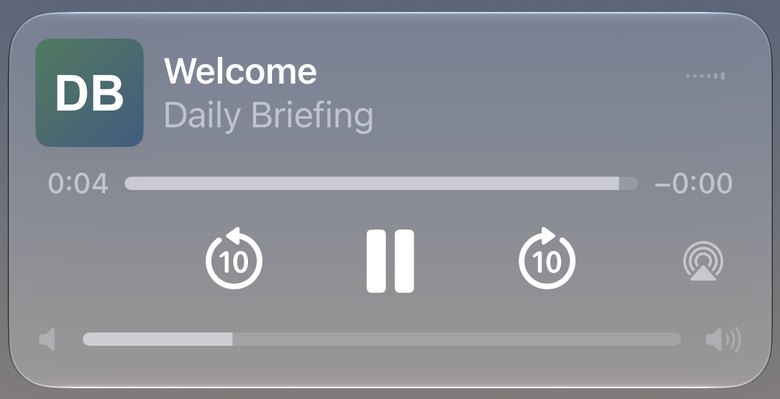
- Lock your phone. The play, pause and skip controls stay on the lock screen. The skip buttons there go back or forward 10 seconds.
If there is no audio on a day, you get the normal page.